Contents
- Index
I/O System Window
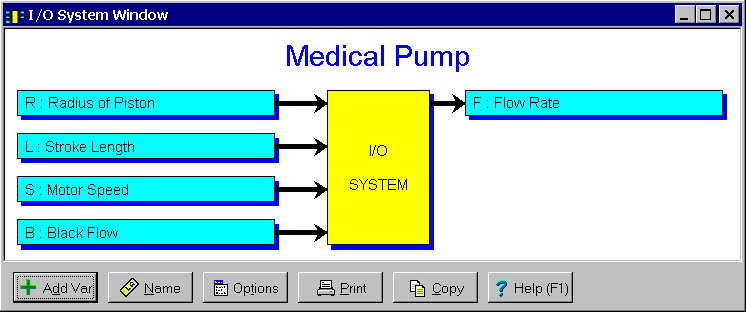
The I/O System window is a child window for displaying the symbols and names of the variables. It is initially displayed. If closed, it can be reopened by clicking on the  button on the toolbar or by selecting the I/O System Window menu item from the
 Variables menu. Click on the X in the upper right corner to close this window.
Double clicking on a variable in the window results in the appropriate variable dialog box being displayed so that the variable can be edited. This is a short cut to selecting the Edit menu item from the Variables menu.
The buttons at the bottom can be hidden by removing the check from the Show Buttons menu item on the Options menu. When hidden, the popup menu can still be used to perform the functions of these buttons. The following buttons are available:
 Used to add a new variable. Displays a menu for selecting the type of variable. The appropriate variable dialog box is then displayed so that the variable's information can be entered. Shortcuts are the Add button on the toolbar, the Add menu item on the
 Variables menu, and to double click the yellow region of the graphic.
 Displays the
 Name I/O System dialog box for changing the name at the top of the graphic. Short cut is to double click on the name in the graphic.
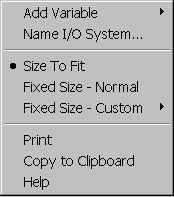
 Clicking this button displays the popup menu below associated with this window. This popup menu has menu items that correspond to each of the buttons shown at the bottom of the window. It also has items that can be used to change how the graphic is sized within the window. A short cut is to right mouse click on the graphic.
 Prints the I/O system graphic. Shortcuts are to click the Print button on the toolbar or to select the Print menu item on the
 File menu.
 Copies the I/O system graphic to the clipboard. Shortcuts are to click the Copy to Clipboard button on the toolbar or to select the Copy to Clipboard menu item on the
 File menu.
 Displays help on using this window. Short cut is to press F1 key.