Contents
- Index
Summary Table Window
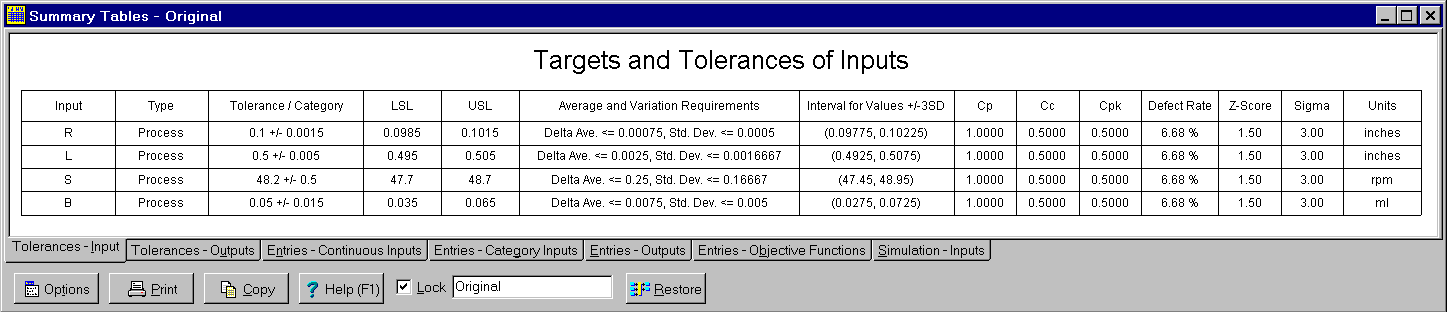
The Summary Table window is a child window for displaying information about all the variables at once. It is displayed by clicking on the  button on the toolbar or by selecting the Summary Table menu item from the
 Variables menu. Click on the X in the upper right corner to close this window.
The Summary Table window automatically updates itself when information affecting the displayed results is changed. When the program is in immediate update mode, the updates occur immediately following the change being made. If the program is in delayed update mode, the Summary Table window draws a red X through itself when it is not current. Clicking on the window will cause it to update and redraw itself. The update mode is selected using the Options menu.
Double clicking on a variable in the window results in the appropriate variable dialog box being displayed so that the variable can be edited. This is a short cut to selecting the Edit menu item from the Variables menu.
There are seven tabs displaying the following information:
Tab 1 - Tolerances Inputs: Displays specified tolerances and settings for all continuous input variables and category input variables showing the same information that is displayed on the tabs in the Continuous Input Variable dialog boxes and in the Category Input Variable dialog boxes.
Tab 2 - Tolerances - Outputs: Displays calculated tolerances and values for all output variables and objective functions showing the same information that is displayed in the Capability Study windows. Also displays simulation results if available.
Tab 3 - Continuous Inputs: Displays all values and settings specified for continuous input variables in their Continuous Input Variable dialog boxes.
Tab 4 - Category Inputs: Displays all values and settings specified for category input variables in their Category Input Variable dialog boxes.
Tab 5 - Outputs Displays all values and settings specified for output variables in their Output Variable dialog boxes.
Tab 6 - Objective Functions: Displays all values and settings specified for objective functions in their Objective Function dialog boxes.
Tab 7 - Simulation Inputs: Displays simulation results for the continuous input variables. The corresponding simulation results for the outputs are on Tab 2.
The buttons and controls at the bottom can be hidden by removing the check from the Show Buttons menu item on the Options menu. When hidden, the popup menu can still be used to perform the functions of these buttons and controls. To display the popup menu, right mouse click over the tables. The following buttons and controls are available:
 Clicking this button displays the popup menu below associated with this window. This popup menu has menu items that correspond to each of the buttons and controls shown at the bottom of the window. It also has items that can be used to change how the graphic is sized within the window. A short cut is to right mouse click on the graphic.

 Prints the table on the selected tab. Shortcuts are to click the Print button on the toolbar or to select the Print menu item on the
 File menu.
 Copies the table on the selected tab to the clipboard in both text (tab delimited) and graphic formats. Shortcuts are to click the Copy to Clipboard button on the toolbar or to select the Copy to Clipboard menu item on the
 File menu.
 Displays help on using this window. Short cut is to press F1 key.
Lock check box: Checking this box locks the window so that it does not update as changes are made to the variables. Locking the window causes a complete copy of the I/O System to be saved. It also causes the Restore button to be displayed which can be used to restore the I/O System to the state it was in when the Lock check box was clicked. Unlocking a window deletes the saved copy of the I/O System.
Note edit box: Used to enter a note that appears on the caption bar. Primarily intended to be used when the window is locked to describe the version of the design being displayed.
 This button is only displayed when the window is locked. Clicking it restores the I/O System to the exact state it was in when this window was locked.