Contents
- Index
Plot Dialog Box
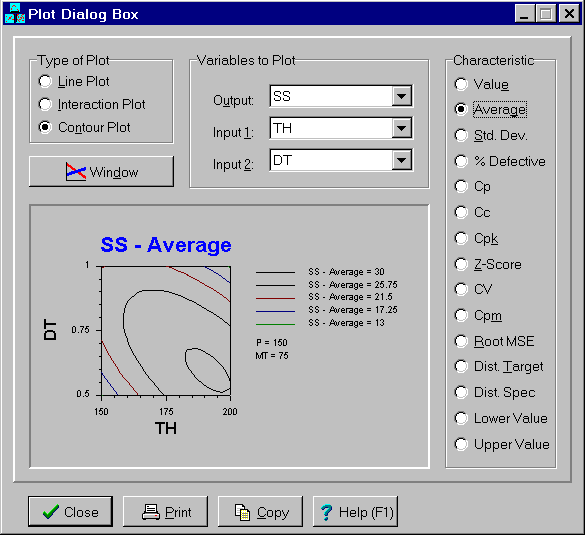
The Plot dialog box is a child window used to display plots. Unlike most dialog boxes, this dialog box does not need to be closed before other tasks can be performed. To determine which plots are of most interest, view the Effects Table window first. To save a plot of interest, click the Window button. The Plot dialog box is displayed by clicking on the  button on the toolbar or by selecting the Plots menu item from the
 Analysis menu. Click on the X in the upper right corner to close this window.
The Plot dialog box automatically updates itself when information affecting the displayed results is changed. When the program is in immediate update mode, the updates occur immediately following the change being made. If the program is in delayed update mode, the Plot dialog box draws a red X through itself when it is not current. Clicking on the window will cause it to update and redraw itself. The update mode is selected using the Options menu.
The dialog controls are:
Type of Plot radio buttons:
One can choose between line, interaction and contour plots. A line plot requires a single input variable.
Interaction and contour plots require two input variables.
Output list box:
Used to select output variable or objective function or to be plotted.
Input 1 list box:
Used to select input variable to appear on bottom axis.
Input 2 list box:
This control only appears for interaction and contour plots. It is used to select the second input variable to appear on the plot. For interaction plots, several lines appear on the plot representing different values of this input. For contour plots, this input appears on the y-axis.
Characteristic radio buttons:
Used to specify the characteristic of the specified output variable or objective function that is to be plotted. For an output variable, the following characteristics can be plotted: Value, Average, Standard Deviation, Percent Defective, Cp, Cc, Cpk, Z-Score, CV, Cpm, Root MSE, Distance Inside Spec, Distance From Target, Lower Value and Upper Value.
Window button:
Pressing this button displays a copy of the plot in a separate Plot window.
The buttons and controls at the bottom can be hidden by removing the check from the Show Buttons menu item on the Options menu. When hidden, a popup menu can still be used to perform the functions of these buttons and controls. The following buttons and controls are available:
 Clicking this button close the dialog box. A short cut is press the Esc key.
 Prints the plot. Shortcuts are to click the Print button on the toolbar or to select the Print menu item on the
 File menu.
 Copies the plot to the clipboard. Shortcuts are to click the Copy to Clipboard button on the toolbar or to select the Copy to Clipboard menu item on the
 File menu.
 Displays help on using this dialog box. Short cut is to press F1 key.